
Sell Media is a complete solution for selling images and other media directly out of your WordPress website.
Build your own stock photo, art or video site in a few minutes using Sell Media. Create and assign different licenses and prices for each image based on the anticipated usage of the media.
Categorize your media into collections, create private collections and display image metadata. Bulk upload many images at once to speed your workflow.
Sell Media protects your high resolution images by putting them in a folder that isn’t web-accessible. Need more protection? See the extensions below.
Sell stock photography and reprints
You keep 100% of the sales. Yessir!
Assign different licenses (commercial, personal, etc.) to your stock images to increase the price.
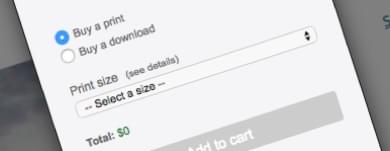
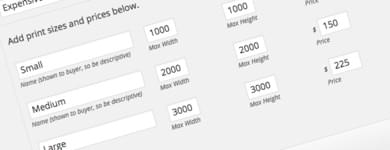
Sell reprintsOur Reprints extensions will allow you to print and ship reprints yourself or automate print fullfillment through a third party print vendor.
Sell other filesIf you can upload it into WordPress, you can sell it. While Sell Media caters to selling and licensing photographs, it works with other media files, too.
Upload many files at once, edit in bulk, set default prices and licenses. Take that much-deserved coffee break.
We're sorta workflow nazis. We studied many of the most popular e-commerce solutions for selling stock and reprints and found some common problems: Bulk upload and bulk editing really sucked. Bad. So we decided to change that.
Sell Media integrates tightly with the native WordPress media uploader and bulk editing features. Using Sell Media is intuitive, familiar and simple. Use the drag and drop uploader to add new files for sale and edit them either in bulk or individually.
Protect high-resolution image uploads & stop theives from downloading your original source files.
Sell Media applies server-side security to ensure that the original source file that you uploaded is protected. Smaller versions of images uploaded to Sell Media are still accessible and can be watermarked, if needed, to dissuade image theives from stealing your images.
Sales reporting that even your accountant will love.
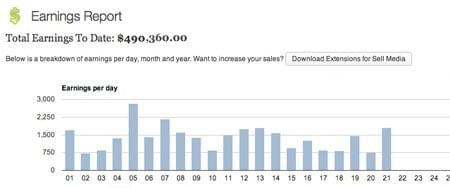
Track the success of your business using interactive sales reporting graphs built into Sell Media. View daily, monthly and yearly reports as well as the total amount of sales to date. Analyze customer conversion rates by comparing total pending sales to total completed sales. Business intelligence is baked right into Sell Media.
Works with any WordPress theme
While we would obviously love it if you used our themes, we built Sell Media to work with any WordPress theme. Simply add the required shortcodes onto your pages, configure your Sell Media settings and you'll be selling in no time flat.
You've made it this far, so it's time to let you in on a little secret: We're in the process of building some super awesome themes specific to Sell Media that will rival the functionalilty of major stock companies. ETA, you ask? Second quarter of 2013.
Still not convinced? Watch these videos.
Videos - Overview
Video Tutorial - Settings
Video Tutorial - Adding New Items
Video Tutorial - Collections
Video Tutorial - Licenses
Take Sell Media to the next level with these powerful extensions:
Sell Media is a complete solution for selling images and other media directly out of your WordPress site. Read the official blog post announcing Sell Media.
Sell Media is a WordPress plugin that allows anyone to sell, license and protect images, videos, audio and pdf's on their self-hosted WordPress site.
Learn more or track the progress of Sell Media on Github.
The Sell Media plugin allows you to:
- Sell any kind of media file that you upload into WordPress, including images, videos, audio files and pdf's.
- License your media for specific usages, including commercial, editorial, or personal usages.
- Create you own stock photo or video site.
- Protect file uploads.
- Accept payments via Paypal.
- Earn passive income by selling and licensing your media.
Take Sell Media to the next level with these powerful extensions:
- Activate the plugin.
- Visit Sell Media -> Settings and configure the options.
- Insert the required Sell Media shortcodes onto your preferred Pages (see FAQ section).
- Visit Sell Media -> Licenses and add or configure your default licenses for new uploads.
- Visit Sell Media -> Add New and upload an image, video, audio file or pdf for sale.
IMPORTANT: Final Step For PayPay Setup
You must setup your Paypal IPN URL for Sell Media to work.
- Login to your PayPal account.
- Mouse over the Profile menu option and then click on the Selling Tools menu option.
- Scroll down to "Getting paid and managing my risk" and click the Update link beside "Instant payment notifications".
- Paste your Paypal IPN URL onto that page in Paypal. Your Paypal IPN URL is located on the Sell Media Settings page.
I have 5k+ photos I would like to sell, can Sell Media handle this?
- Sell Media is a plugin for WordPress and WordPress can easily handle hundreds or thousands of files. That said, the number of images that can be bulk uploaded at once is largely related to server performance. If you are using a cheap, shared web host, then you will need to contact them and ask them to change [PHP settings] (http://php.net/manual/en/function.set-time-limit.php).
My file is 500MB+ in size but users cannot download the file after purchasing?
Check with your hosting provide on your download limits. Sell Media does not provide any type of file splitting service.
What are shortcodes and how do I use them?
Shortcodes are small snippets of code that when added to a Post, Page or Widget add functionality to your site. You must add the following shortcodes to your preferred Pages to use Sell Media:
- Checkout Shortcode - (REQUIRED) Create a page called "Checkout" and add this shortcode to it: [sellmediacheckout]
- Thanks Shortcode - (REQUIRED) Create a page called "Thanks" and add this shortcode to it: [sellmediathanks]
- Buy Button Shortcode - (OPTIONAL) Used for displaying specific items for sale: [sellmediabuy_button]
- Search Form Shortcode - (OPTIONAL) Used to display a search form exclusively for searching items for sale within Sell Media: [sellmediasearchform]
How do I show my checkout cart?
- Create a page called "Checkout" and add this shortcode to the page: [sellmediacheckout]
- Visit Sell Media -> Settings and select the Checkout page you created above to the "Checkout Page" option.
How do I show an item available for sale?
You have two options:
- After adding a new item for sale on the Sell Media -> Add New page, copy and paste the shortcode at the bottom of the screen into a Post, Page or Text Widget. This shortcode will embed the image and an "Add to Cart" button below the image. The shortcode looks something like this: [sell_media id="257" text="Purchase" style="button" color="blue" size="medium"]
- Each item you add for sale also has a dedicated URL. Click the View Item button after saving your first Sell Media item. You could then add the link to that specific item to one of your Menus on Appearance -> Menus -> Custom Menu Item.
How do I bulk upload images for sale?
- Click Sell Media -> Add Bulk
- Click "Upload or Select Images"
- Simply drag and drop your files into the box that appears, or click Select Files to choose a file from your computer to upload. Please keep in mind that the drag and drop uploader only works in browsers with HTML5 upload support such as the latest versions of Chrome, Firefox, or Safari. Other browsers will still show the Select Files button or the basic browser uploader form.
- This item will be added as a new entry in Sell Media. By default, the newly created Sell Media item will inherit the sizes, prices and licenses that you chose on Sell Media -> Settings. You can modify the price and available licenses on the Sell Media tab by editing each individual item.
How do I display a gallery of images for sale?
Sell Media includes a new "Collections" taxonomy, which you can see on the right side of the screen when adding a new item to Sell Media. Assign each item to a specific Collection and the items will be displayed on that specific collection's archive page. You can then link to the collection like this: http://example.com/collection/my-collection-name/. A list of collecitons also shows up on the Appearance -> Menus page so you can add them to any menu.
How do I password protect an item?
The Password Protection option is located in the Publish box when editing a Sell Media item. Click the Visibility - Public - Edit link, select Password Protected, type in a password and click Save.
How do I hide a collection?
Click Sell Media -> Collections -> Click "Edit" next to the Collection you want to hide, check the checkbox "Hide" click save.
How do I hide a collection from being listed on archive pages?
Click Sell Media -> Collections -> Add New and check the "Hide" option.
How do I increase the maximum upload size in WordPress?
Depending on the web hosting company you choose and the package you select, each of you will see maximum file upload limit on your Media Uploader page in WordPress. For some it is as low as 2MB which is clearly not enough for large images or videos. You can increase this by doing one of the follwing:
Theme Functions File - There are cases where we have seen that just by adding the following code in the theme function’s file, you can increase the upload size:
@ini_set( 'upload_max_size', '64M' ); @ini_set( 'post_max_size', '64M'); @ini_set( 'max_execution_time', '300' );Create or Edit an existing PHP.INI file - In most cases if you are on a shared host, you will not see a php.ini file in your directory. If you do not see one, then create a file called php.ini and upload it in the root folder. In that file add the following code:
upload_max_filesize = 64M post_max_size = 64M max_execution_time = 300htaccess Method - Some people have tried using the htaccess method where by modifying the .htaccess file in the root directory, you can increase the maximum upload size in WordPress. Open or create the .htaccess file in the root folder and add the following code:
php_value upload_max_filesize 64M php_value post_max_size 64M php_value max_execution_time 300 php_value max_input_time 300
Again, it is important that we emphasize that if you are on a shared hosting package, these techniques may not work. In that case, you would have to contact your web hosting provider to increase the limit for you.
Transactions are not posting. Why?
Please visit the Add Media -> Settings -> Payments page and double check all of your settings. Also, if you are using Paypal, you need to make sure you have added your IPN Listener URL to Paypal.
What are license types?
The Sell Media plugin helps you to create and assign different licenses and prices for each image, video or audio file based on the anticipated usage of the media. For example: If a large company wants to purchase one of your images for a billboard, you should charge one price for commercial usage, charge another for editorial, and so on.
Does the plugin work for a WordPress Network
It only works on the primary blog. While it will work on other blogs, file uploads will not be protected. Why? Because WordPress stores uploads in a "virtual" directory of blogs.dir, server side file protection using .htaccess doesn't work on virtual directories.
1.4.6
- Editors can now use the bulk upload
- Optimized download history shortcode
- Various bug fixes
1.4.5
- Fixing issues in download history shortcode
1.4.4
- Correcting param in filter
1.4.3
- Image description is imported as item description during bulk upload process
- Adding language support
- Creator taxonomy is now publicly viewable
- Added various filters in bulk uploader for developers
- Widget updates
- Added hook
sell_media_bulk_uploader_additional_fields_metato allow developers to add additional meta fields in bulk upload - Number formatting fix, 0.1 would show in some cases, now it includes trailing zero, i.e., 0.10
- Bug fix in add to cart button
- Bug fix in
[sell_media_item]shortcode - Bug fix when prices of 0.1 were being rounded to 0.00 on some pages
1.4.2
- Users can now change the post type slug
- Added shortcode
sell_media_additional_list_itemsso users can add additional information on the single item page under the size list. sell_media_bulk_uploader_additional_fieldsAllows developers to add additional form fields for bulk upload/edit- Fixing issue where original file is sometimes downloaded vs. the one purchased
- Various PHP notices fixes
1.4.1
- Improved support for importing EXIF/IPTC data such as; city, keywords, etc. during the creation of new items
- Allowed prices to be lower than 0.99
- Improved handling when an item has no size or license
- Improved handling for prices with non-images
1.4
- Better support for portrait images
- Fixed issue where download sizes would not always be displayed
1.3
- Additional error checking added for PayPal
- Translation issue fixed
- Email formatting and issues fixed
1.2.9
- Optimized bulk uploader! Images sizes are no created on download (after purchase) and not created during the upload process.
- You can now bulk add images to a Collection from the bulk uploader
- Various bug fixes
1.2.8
- Fixing bug where users received multiple or no download email
1.2.7
- Fixing bug where items with 0 price can be added to the cart
1.2.6
- Numerous hooks and filters addd
- Numerous bug fixes
1.2.5
- Performance improvements
- Added MS Docs support
- Updated readme.txt
- Bug: Price can now be saved in decimal
- Better styling support
1.2.4
- Settings: Default price moved to its own section
- Hook: Updated 'sellmediaaftersuccessfulpayment' now accepts an additional parameter
- Hook: Updated 'sellmediasettingsinithook' to work on all tabs
- Hook: Moved 'sellmediasizesettingshook' to the aprobiate location
- Hook: Added new hook 'sellmediabelowregistrationform'
- Hook: Added 'sellmediaaddtionalcusotmermeta'
- Hook: Added sellmediabeforesessionadd
- Feature: Options in dialog now default to nothing
- Feature: Added current state select
- Removed validation scripts inplace of native browser validation
- Various bug fixes and styling enhancments
1.2.3
- Fixed issue where currency was not showing for some users
- Fixed issue where default search would result in 404 for some results
- Markup percentage is no longer shown on the front-end, only the adjust price is
1.2.2
- Fixed intermittent issue where download files would be 0kb
- Fixed issue where downloaded zip files would unzip as zip
- Fixed issue in settings regarding default price
1.2.1
- Minor bug fix in size variants
1.2
- Added full Featured Image support
- Bug fixes
1.1
- Instruction changes
- Fixing settings to work better with extensions
1.0.9
- Added bulk uploader
- Added size variants
- Code enhancments
- Bug fixes
1.0.8
- Bug fixes
- Code improvements
1.0.7
- Bug fixes
- Added option for customer notification
- 3.5 media cart fix
1.0.6
- License descriptions now show on the checkout page and option boxes when hovered
- Fixed bug when Attachments are no longer marked for sale.
- Fixed issue when Item is emptied from trash bin
- Fixed bug where editor appeared on other Add New pages.
- Adding hook for single theme.
1.0.5
- Fixed transients
- Fixed issue where button was not showing on cart
1.0.4
- Added Loading gif on purchase dialog
- Users can now manually upload a file to the sell_media folder then add the path to the file on the "Add Item" page.
- Better handling of template redirection
- Item description now has a Text Editor
- Added shortcode sellmediaall_items
- Added shortcode sellmediadownload_list
- Zip file support
- Added bulk "Sell This" option
- Bug fixes
1.0.3
- Added Google Charts on Reports page
- Added Paypal IPN instructions on Settings
- Max-width fix for Firefox on Sell Media archives
- Post Type Taxonomy archives conflict fix
- Download file fix
1.0.2
- Plugin Settings save bugfix
1.0.1
- Added action hooks
- Default to Live Mode, not Test Mode
- License calculation on Edit License works
- Removed email testing code
- Additional support for image, video, document mime types
- Checkout page removing item bugfix
- Tabs for Settings
- Use submit_button()
1.0
- Public release
0.1-beta2
- Permalinks flushed on plugin activation
0.1-beta
- First public beta